ACP integration
Run cagent agents directly in your editor using the Agent Client Protocol (ACP). Your agent gets access to your editor's filesystem context and can read and modify files as you work. The editor handles file operations while cagent provides the AI capabilities.
This guide shows you how to configure Neovim, or Zed to run cagent agents. If you're looking to expose cagent agents as tools to MCP clients like Claude Desktop or Claude Code, see MCP integration instead.
How it works
When you run cagent with ACP, it becomes part of your editor's environment. You select code, highlight a function, or reference a file - the agent sees what you see. No copying file paths or switching to a terminal.
Ask "explain this function" and the agent reads the file you're viewing. Ask it to "add error handling" and it edits the code right in your editor. The agent works with your editor's view of the project, not some external file system it has to navigate.
The difference from running cagent in a terminal: file operations go through your editor instead of the agent directly accessing your filesystem. When the agent needs to read or write a file, it requests it from your editor. This keeps the agent's view of your code synchronized with yours - same working directory, same files, same state.
Prerequisites
Before configuring your editor, you need:
- cagent installed - See the installation guide
- Agent configuration - A YAML file defining your agent. See the tutorial or example configurations
- Editor with ACP support - Neovim, Intellij, Zed, etc.
Your agents will use model provider API keys from your shell environment
(ANTHROPIC_API_KEY, OPENAI_API_KEY, etc.). Make sure these are set before
launching your editor.
Editor configuration
Zed
Zed has built-in ACP support.
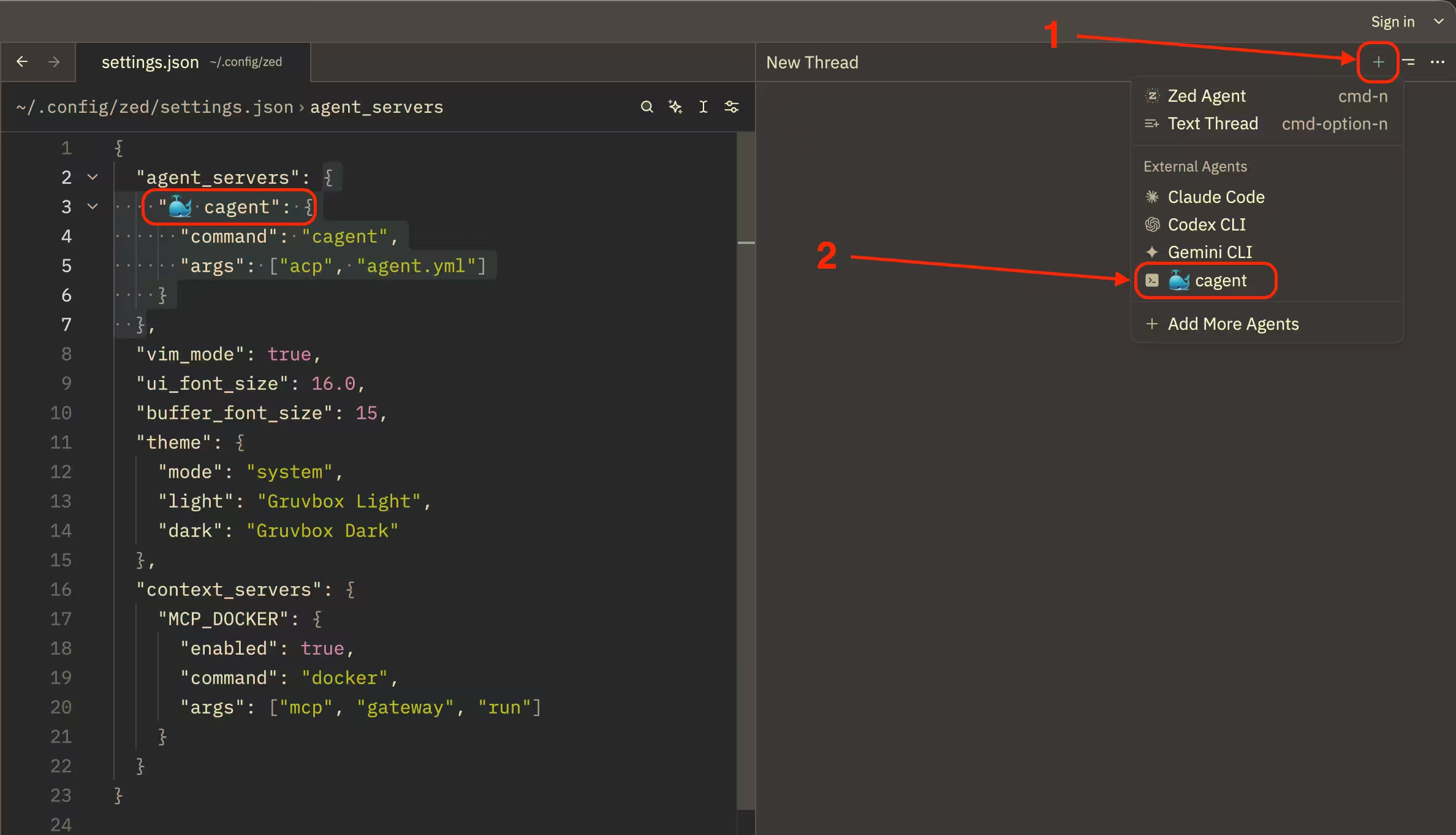
Add cagent to your agent servers in
settings.json:{ "agent_servers": { "my-cagent-team": { "command": "cagent", "args": ["acp", "agent.yml"] } } }Replace:
my-cagent-teamwith the name you want to use for the agentagent.ymlwith the path to your agent configuration file.
If you have multiple agent files that you like to run separately, you can create multiple entries under
agent_serversfor each agent.Start a new external agent thread. Select your agent in the drop-down list.
Neovim
Use the CodeCompanion plugin, which has native support for cagent through a built-in adapter:
Install CodeCompanion through your plugin manager.
Extend the
cagentadapter in your CodeCompanion config:require("codecompanion").setup({ adapters = { acp = { cagent = function() return require("codecompanion.adapters").extend("cagent", { commands = { default = { "cagent", "acp", "agent.yml", }, }, }) end, }, }, })Replace
agent.ymlwith the path to your agent configuration file. If you have multiple agent files that you like to run separately, you can create multiple commands for each agent.Restart Neovim and launch CodeCompanion:
:CodeCompanionSwitch to the cagent adapter (keymap
gain the CodeCompanion buffer, by default).
See the CodeCompanion ACP
documentation for more
information about ACP support in CodeCompanion. Note that terminal operations
are not supported, so toolsets like shell or
script_shell are not usable through CodeCompanion.
Agent references
You can specify your agent configuration as a local file path or OCI registry reference:
# Local file path
$ cagent acp ./agent.yml

# OCI registry reference
$ cagent acp agentcatalog/pirate
$ cagent acp dockereng/myagent:v1.0.0
Use the same syntax in your editor configuration:
{
  "agent_servers": {
    "myagent": {
      "command": "cagent",
      "args": ["acp", "agentcatalog/pirate"]
    }
  }
}
Registry references enable team sharing, version management, and clean configuration without local file paths. See Sharing agents for details on using OCI registries.
Testing your setup
Verify your configuration works:
- Start the cagent ACP server using your editor's configured method
- Send a test prompt through your editor's interface
- Check that the agent responds
- Verify filesystem operations work by asking the agent to read a file
If the agent starts but can't access files or perform other actions, check:
- Working directory in your editor is set correctly to your project root
- Agent configuration file path is absolute or relative to working directory
- Your editor or plugin properly implements ACP protocol features
What's next
- Review the configuration reference for advanced agent setup
- Explore the toolsets reference to learn what tools are available
- Add RAG for codebase search to your agent
- Check the CLI reference for all
cagent acpoptions - Browse example configurations for inspiration