Configure Gordon's tools
Gordon includes built-in tools that extend its capabilities. You can configure which tools Gordon has access to based on your security requirements and workflow needs.
Tool configuration provides an additional layer of control:
- Enabled tools: Gordon can propose actions using these tools (subject to your approval)
- Disabled tools: Gordon cannot use these tools, and will not request permission to use them
Accessing tool settings
To configure Gordon's tools:
Open Docker Desktop.
Select Gordon in the sidebar.
Select the settings icon at the bottom of the text input area.
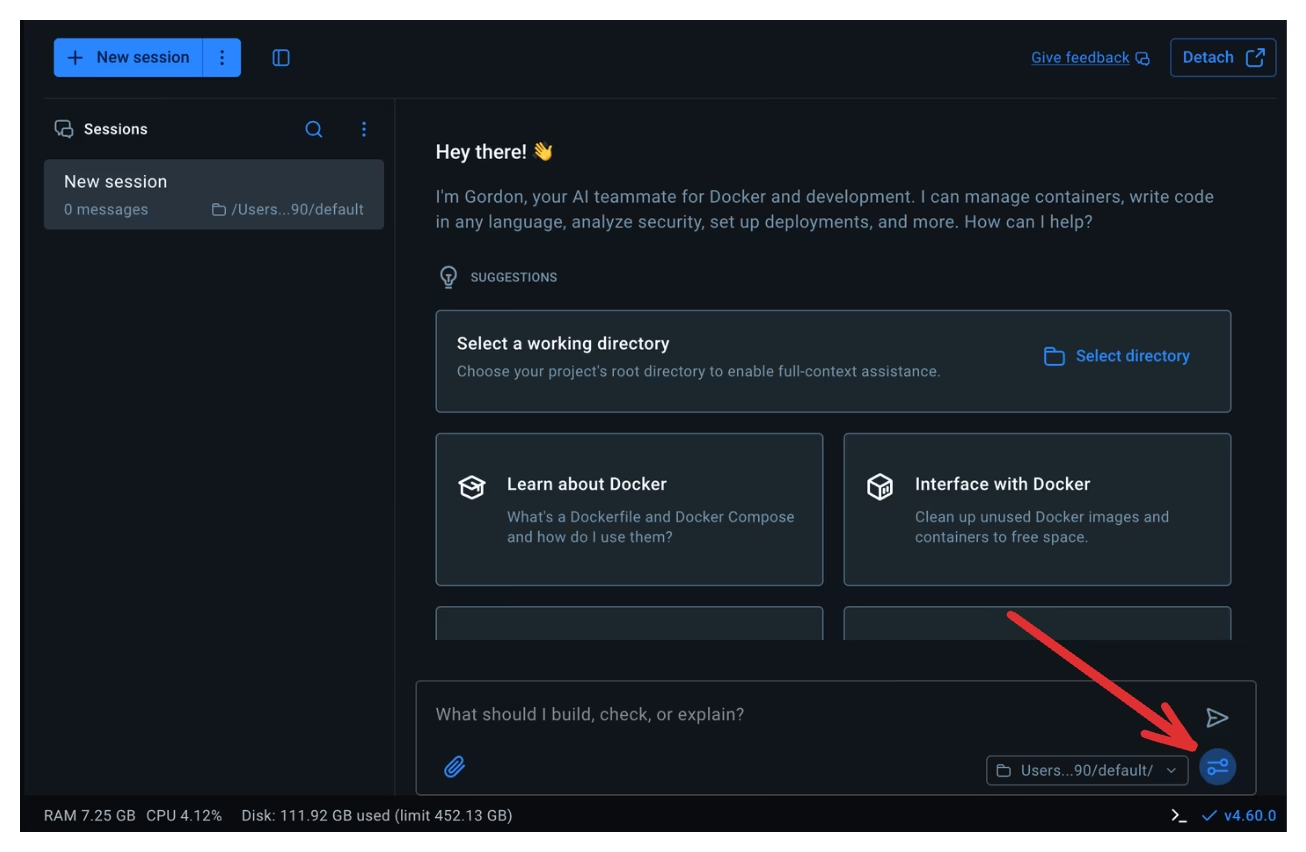
The tool settings dialog opens with two tabs: Basic and Advanced.
Basic tool settings
In the Basic tab, you can enable or disable individual tools globally.
To disable a tool:
- Find the tool you want to disable in the list.
- Toggle it off.
- Select Save.
Disabled tools cannot be used by Gordon, even with your approval.
Advanced tool settings
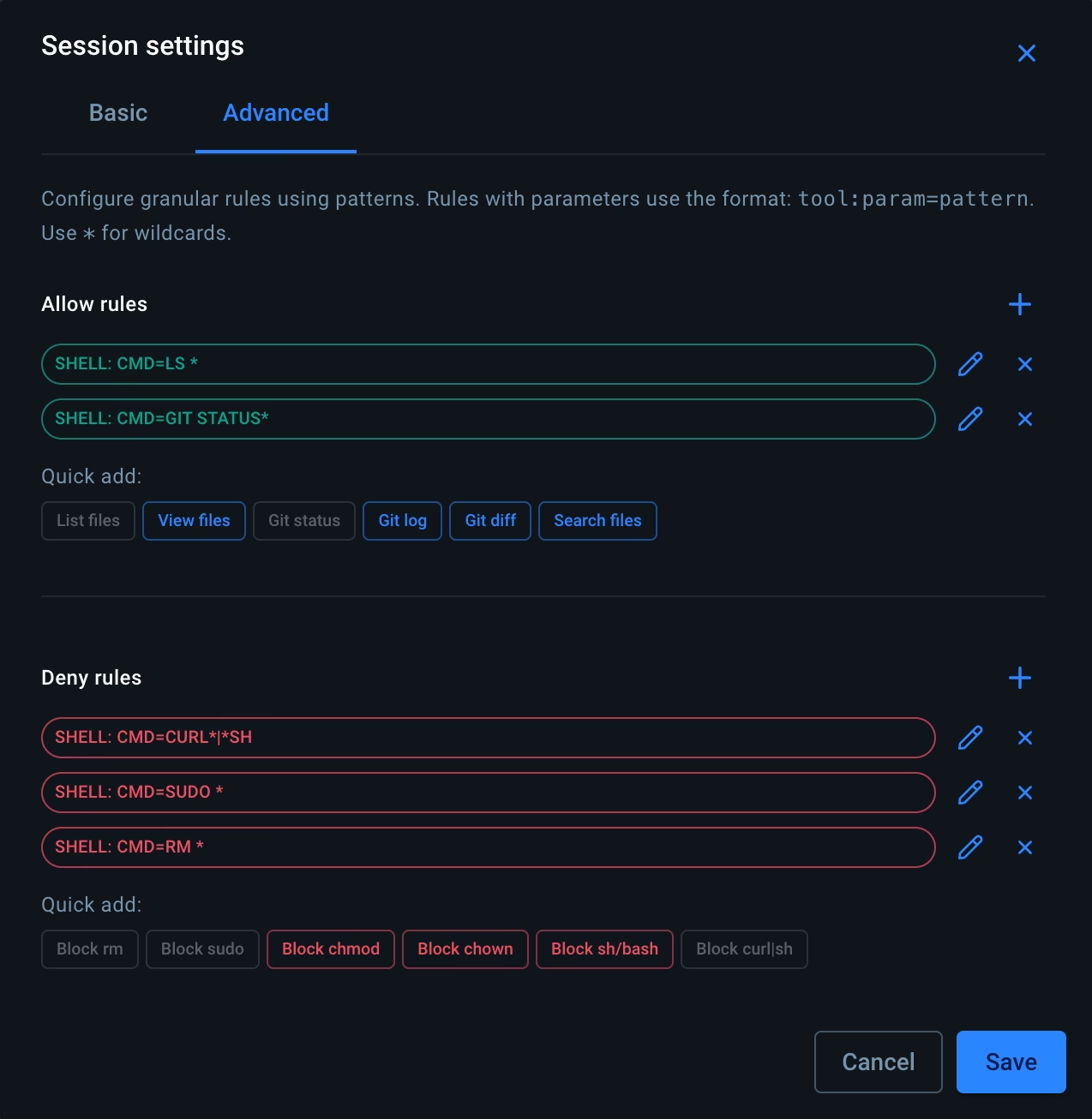
The Advanced tab lets you create fine-grained allow-lists and deny-lists for specific commands or patterns.
Allow-lists:
Gordon can use allow-listed commands even when the main tool is disabled. For
example, disable the shell tool but allow cat, grep, and ls.
Deny-lists:
Block specific commands while keeping the tool enabled. For example, allow the
shell tool but deny chown and chmod.
To configure:
- Switch to the Advanced tab.
- Add commands to Allow rules or Deny rules.
- Select Save.
Gordon still requests approval before running allow-listed tools, unless YOLO mode (auto-approve mode that bypasses permission checks) is enabled.
Organizational controls
For Business subscriptions, administrators can control tool access for the entire organization using Settings Management.
Administrators can:
- Disable specific tools for all users
- Lock tool configuration to prevent users from changing it
- Set organization-wide tool policies
See Settings Management for details.