Gordon's permission model
Before Gordon uses a tool or action that can modify your system, it proposes the action and waits for your approval before executing.
What requires approval
By default, the following actions require approval before Gordon can use them:
- Commands executed in your shell
- Writing or changing files
- Fetching information from the internet
What doesn't require approval
- Reading files, listing directories (even outside Gordon's working directory)
- Searching the Docker documentation
- Analyzing code or explaining errors
Configuring permission settings
To change the default permission settings for Gordon:
Open Docker Desktop.
Select Gordon in the sidebar.
Select the settings icon at the bottom of text input.
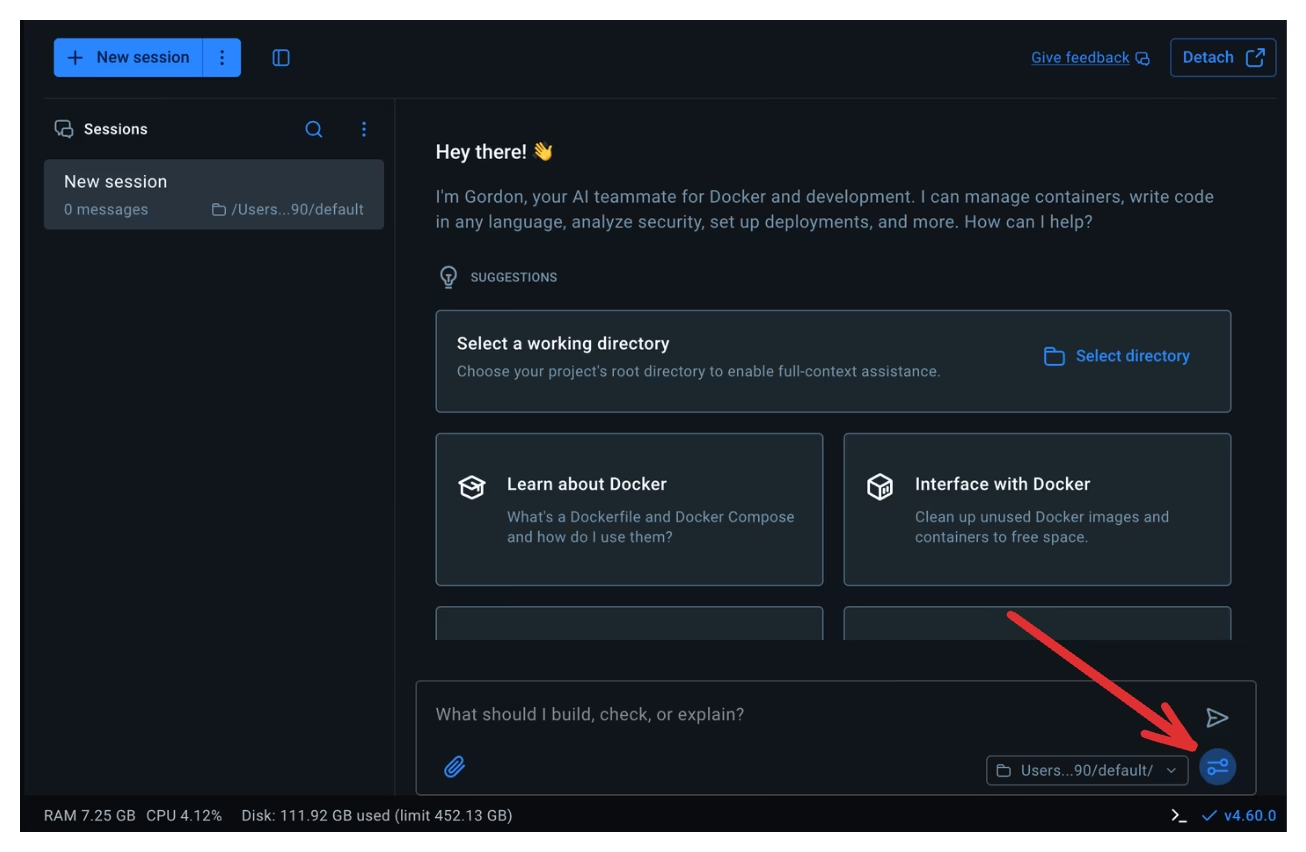
In the Basic tab you can configure whether Gordon should ask for permission before using a tool.
You can also enable YOLO mode to bypass permission checking altogether.
The new permission settings apply immediately to all sessions.
Session-level permissions
When you choose "Approve for this session" (Desktop) or "A" (CLI), Gordon can use that specific tool without asking again during the current conversation.
Example:
$ docker ai "check my containers and clean up stopped ones"

Gordon proposes:
  docker ps -a

Approve? [Y/n/a]: a

[Gordon executes docker ps -a]

Gordon proposes:
  docker container prune -f

[Executes automatically - you approved shell access for this session]
Session permissions reset when:
- You close the Gordon view (Desktop)
- You exit
docker ai(CLI) - You start a new conversation
Security considerations
- Working directory
- The working directory sets the default context for file operations. It does not constrain Gordon's access to files or directories; Gordon can read files outside this directory.
- Verify before approving
- Gordon can make mistakes. Before approving:
- Confirm commands match your intent
- Check container names and image tags are correct
- Verify volume mounts and port mappings
- Review file changes for important logic
If you don't understand an operation, ask Gordon to explain it or reject and request a different approach.
- Destructive operations
- Gordon warns about destructive operations but won't prevent them. Operations
like
docker container rm,docker system prune, anddocker volume rmcan cause permanent data loss. Back up important data first.
Stopping and reverting
Stop Gordon during execution by pressing Ctrl+C (CLI) or selecting Cancel
(Desktop).
Revert Gordon's actions using Docker commands or version control:
- Restore files from Git
- Restart stopped containers
- Rebuild images
- Recreate volumes from backups
Use version control for all files in your working directory.
Organizational controls
Administrators can control Gordon's capabilities at the organization level using Settings Management.
Available controls:
- Disable Gordon entirely
- Restrict tool capabilities
- Set working directory boundaries
For Business subscriptions, Gordon must be enabled by an administrator before users can access it.
See Settings Management for details.