Docker Offload v1 quickstart
Docker Offload v1 lets you build and run containers in the cloud while using your local Docker Desktop tools and workflow. This means faster builds, access to cloud resources, and a seamless development experience.
This quickstart covers the steps developers need to get started with Docker Offload v1.
NoteIf you're an organization owner, to get started you must contact sales and subscribe your organization to use Docker Offload v1. After subscribing, see Manage Docker products to learn how to manage access for the developers in your organization.
Prerequisites
- You must have Docker Desktop installed. Docker recommends using the latest version of Docker Desktop to access the newest features and improvements in Docker Offload v1.
- You must have a Docker Business subscription and a Docker Offload v1 subscription.
Step 1: Verify access to Docker Offload v1
To access Docker Offload v1, you must be part of an organization that has subscribed to Docker Offload v1. As a developer, you can verify this by checking if the Docker Offload toggle appears in the Docker Desktop Dashboard header.
- Start Docker Desktop and sign in.
- In the Docker Desktop Dashboard header, look for the Docker Offload toggle.
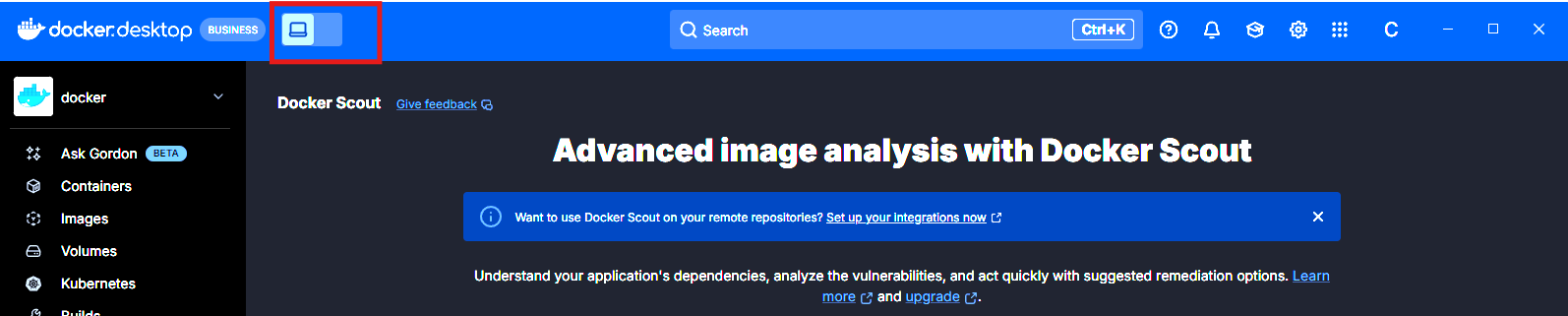
If you see the Docker Offload toggle, you have access to Docker Offload v1 and can proceed to the next step. If you don't see the Docker Offload toggle, check if Docker Offload is disabled in your Docker Desktop settings, and then contact your administrator to verify that your organization has subscribed to Docker Offload v1 and that they have enabled access for your organization.
Step 2: Start Docker Offload v1
You can start Docker Offload v1 from the CLI or in the header of the Docker Desktop Dashboard. The following steps describe how to start Docker Offload v1 using the CLI.
Start Docker Desktop and sign in.
Open a terminal and run the following command to start Docker Offload v1:
$ docker offload startTipTo learn more about the Docker Offload v1 CLI commands, see the Docker Offload CLI reference.
If you are a member of multiple organizations that have access to Docker Offload v1, you have the option to select a profile. Your usage is associated with the organization of the selected profile.
When Docker Offload v1 is started, you'll see a cloud icon (
 ) in the Docker Desktop
Dashboard header, and the Docker Desktop Dashboard appears purple. You can run
docker offload status in a terminal to check the status of Docker Offload v1.
Step 3: Run a container with Docker Offload v1
After starting Docker Offload v1, Docker Desktop connects to a secure cloud environment that mirrors your local experience. When you run builds or containers, they execute remotely, but behave just like local ones.
To verify that Docker Offload v1 is working, run a container:
$ docker run --rm hello-world
If Docker Offload v1 is working, you'll see Hello from Docker! in the terminal output.
Step 4: Monitor your Offload session
When Docker Offload v1 is started and you have started session (for example, you've
ran a container), then you can see current session duration estimate in the
Docker Desktop Dashboard footer next to the hourglass icon (
 ).
Also, when Docker Offload v1 is started, you can view detailed session information by selecting Docker Offload > Insights in the left navigation of the Docker Desktop Dashboard.
Step 5: Stop Docker Offload v1
Docker Offload v1 automatically idles if you do not respond to periodic prompts that appear in the Docker Desktop Dashboard. You can stop your Docker Offload v1 session at any time. To stop Docker Offload v1:
$ docker offload stop
When you stop Docker Offload v1, the cloud environment is terminated and all running containers and images are removed. When Docker Offload v1 has been idle for 5 minutes, the environment is also terminated and all running containers and images are removed.
To start Docker Offload v1 again, run the docker offload start command.